- 1
Requirements
Jsonium is developed in Java , and requires Java 1.6 or higher in order to run.
 - 2
Download
Download Jsonium installer or zip archive from release area. - 3
Setup on Windows
Run the installer and follow instructions to setup Jsonium.
Launch Jsonium from the Start menu. - 4
Alternatively on Windows, Linux, Mac OS
Unpack the zip archive to <jsonium home> directory.
Run from the command line window:
<jsonium home>$ java -jar jsonium.jar
Or, on Mac OS, right-click on the <jsonium home>/jsonium.jar, and select Open
- 1 Launch Jsonium. When it is launched for the first time, there is a new file with a single unsaved request.
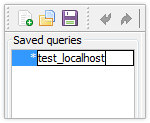
- 2 Rename the request by double-clicking on its’ name on the left.
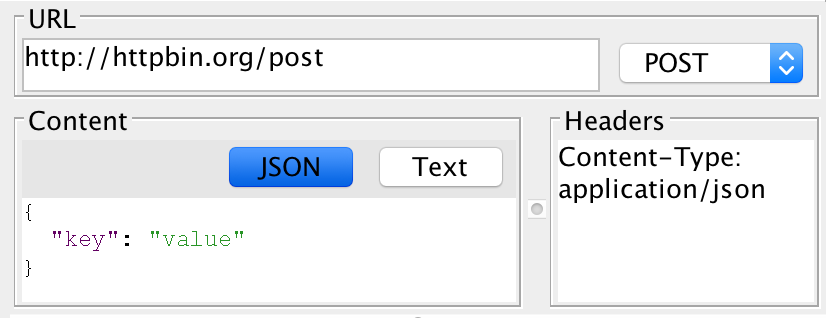
- 3 Fill out the request url, content and headers.
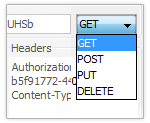
- 4 Select the request type from the list.
- 5 Save the file (File → Save).
- 6 Press run button on the toolbar.

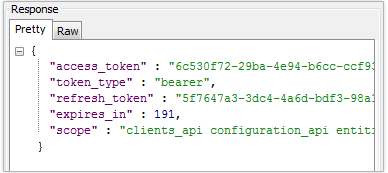
- 7 You will see the request result in the response section. It contains pretty and raw response body representation.
Create a new request
 |
Request  New New |
Ctrl + Plus |
The new request is not saved to the file until the user does it manually.
Delete request
 |
Request Delete |
Ctrl + Delete |
The request is not deleted from the file system until the user saves the file.
Save request
 |
Request Save |
Ctrl + Shift + S |
Save a single selected request to the current file. Other changed and non-saved requests will not be updated in the file.
Revert request
 |
Request Revert |
Ctrl + Shift + Z |
Revert a single selected request to the last saved state.
Execute request
 |
Request Execute |
F9 |
Execute the selected request.
Format request body
 |
Edit Format |
Ctrl + Shift + F |
Format JSON request body.
Manage variables
 |
Variables Manage |
Ctrl + M |
Manage environment variables.
Insert variable
 |
Variables Insert |
Ctrl + I |
Insert an environment variable.